The photos of a wedding or a baptism are edited and ready. Now the couple, or the parents at a baptism, need to see them and choose for the album. That is usually where the messages start: lists of file names on WhatsApp, “which one was the one with grandma?”, download folders that expire before anyone opens them.
An online gallery gathers all of this into one link. Your client sees the photos on their phone, marks their favourites with a heart, and their choice reaches you ready for the album.
At a glance
- One gallery with sections, instead of folders and download links.
- Size, watermark and PIN, the way you want them.
- Your client chooses with hearts and notes on the photo.
- The favourites become an album in one click.
One gallery instead of folders and download links
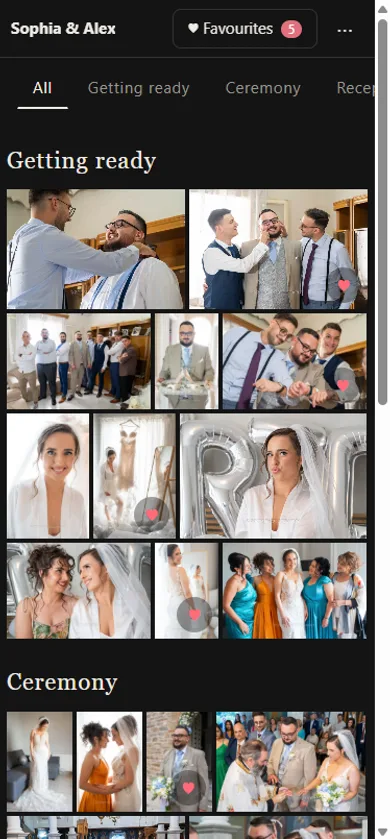
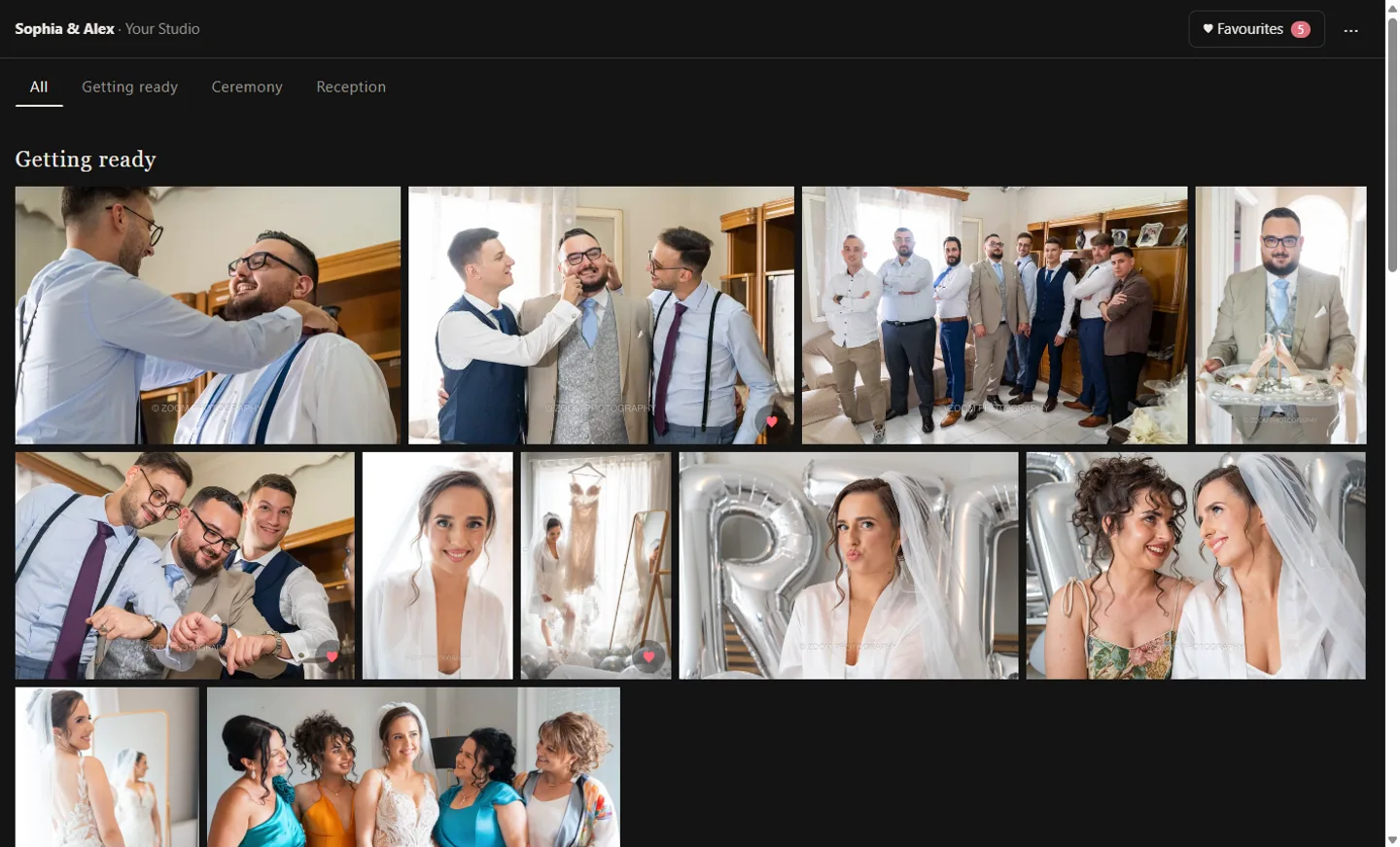
When photos go out as download folders, your client sees them in whatever order their phone shows them, and often never downloads them all. In a gallery they see them the way you arranged them, in the order of the day.
In Digital Album Studio you create a gallery for the event and drag in the folder with the photos. If the folder has subfolders (for example “Getting ready”, “Ceremony”, “Reception”), each one becomes a section with its name. You change the order of photos and sections by dragging, and once the gallery is online, the changes reach your client straight away.
Size and watermark
Every photographer sees this differently. Some upload photos at screen size, with their name on them; others prefer full resolution, unmarked. The app does not push you into one way.
- For web: a 1920 pixel copy on the long side, like a web export from Lightroom. It opens fast on a phone, uploads very quickly and takes little space. The same copies are also saved on your computer, in the “Reduced Size” folder.
- Full size: the files as they are.
- Watermark: text or your logo, with any opacity, size and position you like. You can keep as many as you want and choose one for each gallery.
The link on WhatsApp, Viber or email
Your client will open the link wherever you already talk. On Messenger, Viber, WhatsApp and email the link shows the cover photo, the title and your studio name, so it is clear at once what it is.
Your client enters with their name and email, with no account. If you want a more private gallery, you add a PIN. If the link ends up somewhere it should not, a “New link” stops the old one at once.
If your client sends the link to parents and friends, each one enters with their own name and sees only their own choices. You see them all.
Your client chooses with hearts and notes
This is where most of the messages disappear. Your client taps the heart on the photos they want, and every photo shows its number, so nobody needs to say “the one with grandma”. With the pencil they write a note on the photo, for example “black and white” or “this one big”.
They can also make more than one collection, for example “Album” and “For grandma”. When a collection changes, you get an email with the photos added or removed and their notes. In the app you see every collection, who made it and when.
If your client prefers to choose together at your office, the collection can be made there too, and it is saved like their own.
From favourites to album, in one click
When the collection is ready, “→ New album” copies its photos at full resolution into the album folder and opens the new album with the photos in its library, ready for the automatic layout on spreads. While you design, your client’s note shows above each photo.
The same collection can go elsewhere too: “Copy files to a folder” for prints, or “Copy names” if you need it in another program. If your client chose somewhere else, in another gallery or in a message, you paste the list of names and the app finds the photos in your folder.
How many photos fit well in an album is explained in the guide How many photos in a wedding album.
Expiry, reminders and downloads, if you want them
All of these are options, and you can change them whenever you like, even on a gallery that is already online.
- Available until: if you want the gallery to close on a certain day, your client sees the date on the cover. After it nothing is deleted; you change the date and it opens again.
- Reminder: an email to your client 3, 7, 14 or 30 days before it closes, in the language they used.
- Downloads: off by default. If you turn them on, your client downloads one photo, a section, a collection or all of them, with one folder per section.
A suggestion: as soon as you can
Whenever the photos are ready in your own workflow, we suggest sending them through the gallery as soon as you can after editing. The couple or the parents are still excited and can’t wait to see their photos.
And when they receive them in a beautiful, easy way, they can sit on the sofa, look through them, choose and decide. Their choice and their answers then come much faster, so you can move on to the album, the prints or whatever else they need.
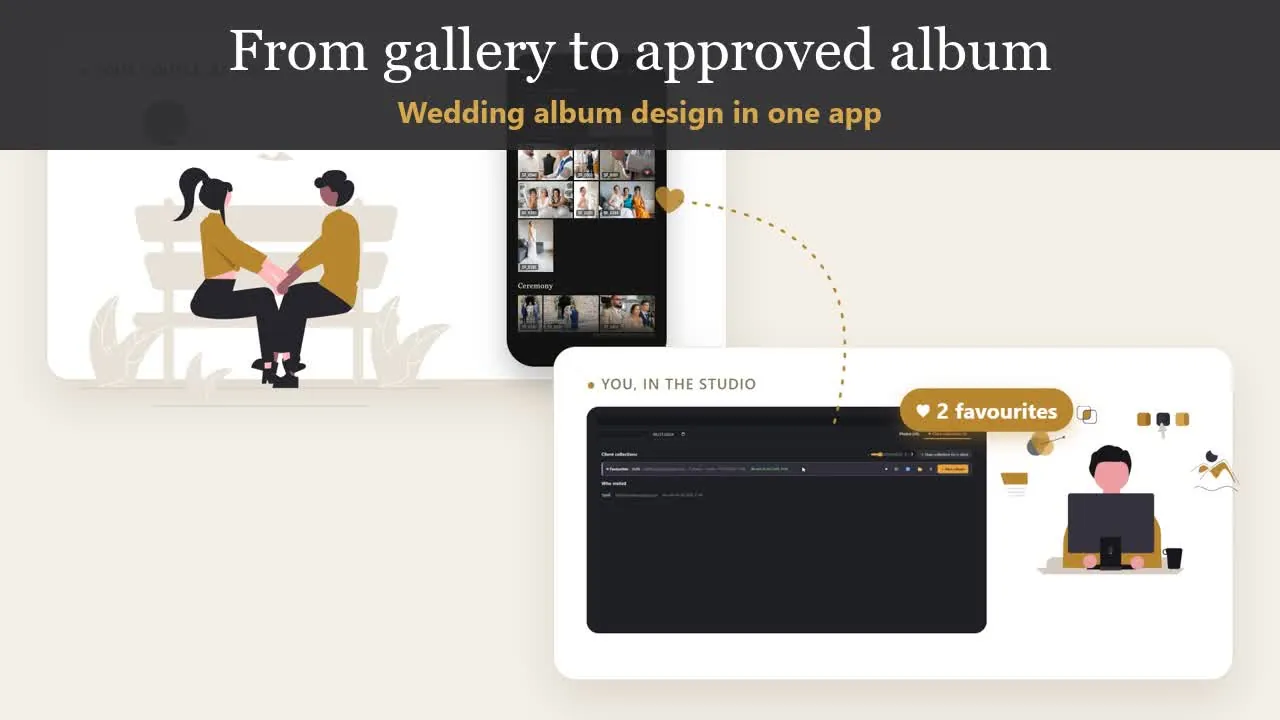
In 50 seconds, the whole route from the gallery to the approved album:
How it works in Digital Album Studio, in short
| Step | What you do | What the app does |
|---|---|---|
| Gallery | Drag in the event folder | Subfolders become sections |
| Upload | Choose size, watermark, PIN | Uploads and gives you the link |
| Link | Send it wherever you talk to your client | Shows with the cover photo |
| Choice | Wait for the email | Hearts, notes, collections |
| Album | Press “→ New album” | The favourites become a new album |
More on the page Online client gallery for photographers. After the album, your client sees and approves it through the same kind of link: Online album proofing.
Would you like us to design the album? From your client’s favourites, under your studio’s name: from €5 a spread, and your first album is half price. Album design service
Next step: How many photos in a wedding album?